How to use TickSmith
This guide takes you from opening TickSmith to sending a marked script back to a student. It takes about five minutes, and you don’t need a script of your own: download the sample essay and follow along with that.
1. Open TickSmith
Open TickSmith in Chrome, Edge or Firefox on a laptop or desktop. There’s nothing to install and no account to make.
Everything happens in your browser. The script you open is never uploaded anywhere, so there’s no student data leaving your computer. Read more about how TickSmith handles data.
2. Open a script
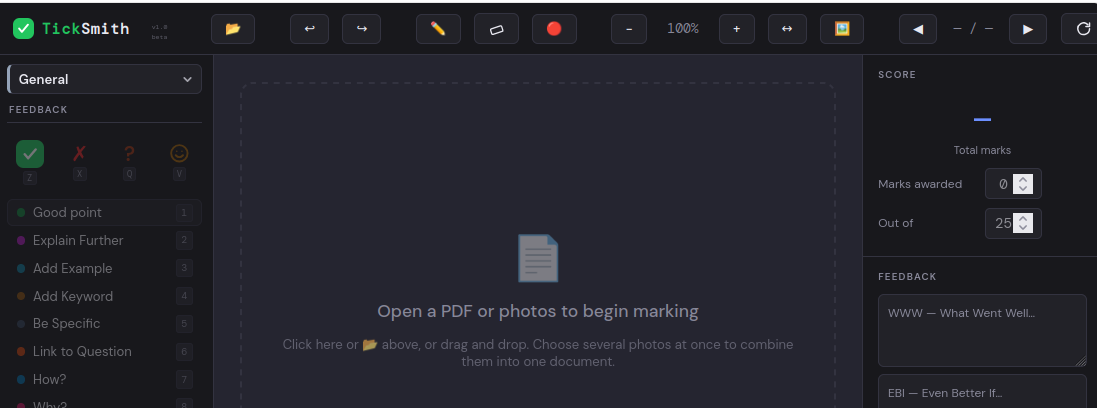
Click the 📂 button and choose a PDF. You can also open photos of handwritten work, which is handy when students submit pictures of their pages rather than a PDF.
3. Pick your subject
Choose your subject from the dropdown at the top of the left sidebar. This sets which feedback and AO stamps you see.
If your subject isn’t listed, choose General. It has a set of stamps that work for any written subject, including SPaG.
4. Mark it
Click a stamp in the sidebar, then click on the script where you want it. Once you know the shortcuts, you’ll rarely need the sidebar.
| Key | What it does |
|---|---|
| Z X Q V | Tick, cross, question mark, smiley |
| 1 to 8 | Feedback stamps for your subject |
| A S D F | AO stamps |
| P | Pen, for underlining or margin notes |
| E | Eraser: click any mark to remove it |
| Ctrl + Z | Undo |
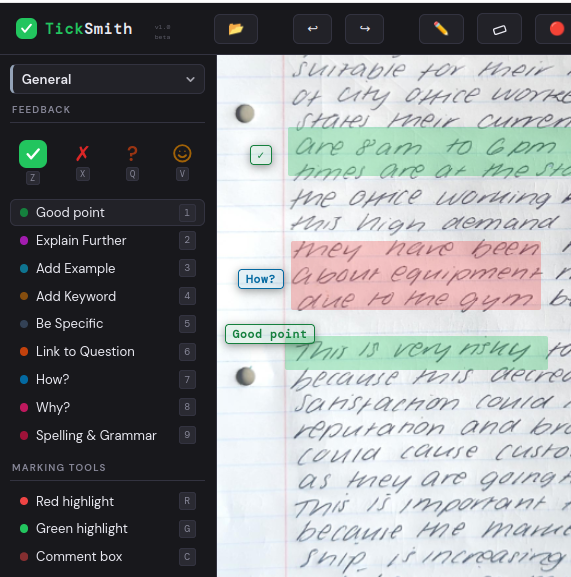
5. Add WWW, EBI and a score
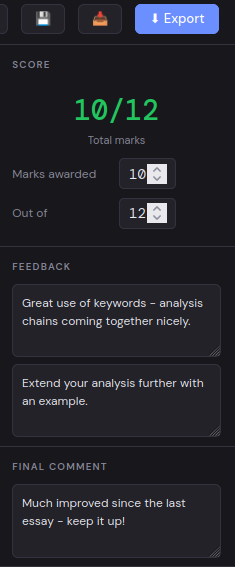
In the feedback panel, fill in What Went Well and Even Better If, plus an overall comment if you want one.
Then enter the score: Marks awarded and Out of. TickSmith shows the total as you type.
6. Export the feedback
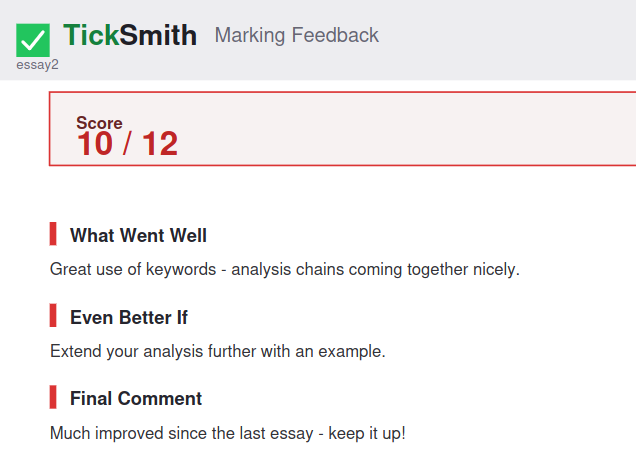
Click ⬇ Export. TickSmith creates a marked-up PDF with your stamps and annotations, plus a feedback slip with your WWW, EBI and score.
Send it back to the student however you normally would. I hand mine back through Teams.
Not finished? Click 💾 to save your marks as a small file. Next time, open the same PDF and load that file to carry on where you left off.
Ready? Open TickSmith and try it with the sample essay.